
FREE TEMPLATE
Get your free
Profit & Loss Tracker
A simple monthly profit and loss tracker for Excel and Google Sheets. Try it out first, completely free.
SEND MY FREE TRACKERJoin the list and claim your free template
Instant download · One-time purchase · No subscription

Help / Simple Profit & Loss Tracker
SETUP GUIDE
Thank you for grabbing the FREE Simple Profit & Loss Tracker! It gives you a clear monthly profit and loss statement and a visual dashboard, without the complicated software. Let’s get you set up.
Start here! We recommend following the steps below in order. The template has built-in protections and helper notes, but taking a few minutes to read through first makes sure everything works correctly and saves you time later.
See how everything flows together in a completed version of the template. The button below opens the Google Sheets version. Using Excel? You’ll find the example file in your download folder.
This template contains locked cells to protect formulas and automated links. We recommend keeping the protection enabled to avoid any accidental changes.
If you do need to unprotect a sheet:
Excel: Go to Review → Unprotect Sheet.
Google Sheets: Go to Data → Protect Sheets and Ranges → select the sheet → remove the protection.
To maintain the integrity of the workbook, here’s how it works:
Input tabs: Setup and Profit & Loss. These tabs require manual data entry and drive the calculations in your Dashboard. Input cells are white.
Dashboard: It updates automatically based on your Profit & Loss tab. No inputs required (except personalized notes).
Jump to a step
Tap a step to jump straight to it. Click any step card to close or open it.
Go to the Setup tab: enter your Company Name (or your name if using this template for personal budgeting), the Fiscal Year, select the statement name from the drop down menu, and choose your currency by replacing the dollar symbol with your preferred currency symbol.
Optional: select the starting month of your fiscal year, or leave it as January if you follow the calendar year.
You can define up to 4 main expense categories for your Profit & Loss. These are your high level reporting buckets, so keep them broad and strategic.
The template comes pre-populated with 4 categories to get you started: General & Administrative, Sales & Marketing, Salaries & Payroll and Other Items. Rename any of them directly on the Setup tab and your reports will update automatically.
In the next step you can assign subcategories to each main category. This lets you track detailed activity without cluttering your reports.
Throughout the workbook, helper notes are included to guide you as you use the template. If you would like to hide these notes to create a cleaner view or prepare dashboards for printing or presentation, simply click the check mark (Google Sheets) or type “YES” (Excel) and the helper notes will disappear. You can turn the helper notes back on at any time by unchecking the box. They will always remain available if you need them later.
In the Setup tab you already defined your 4 main expense categories. Revenue only has one main category. In this step you’ll define the subcategories that sit underneath each one and roll up automatically into your reports.
For example, under General & Administrative you might include Office Supplies, Bank Fees or Insurance. All of these will roll up into the main category on your Profit & Loss and Dashboard.
A few things to note:
Type your subcategories directly in the white cells below each header. Only fill in what you need and leave any extra rows blank. To hide unused rows, highlight them, right click, then select Hide.
Enter monthly totals for each subcategory. All rows accept positive and negative values.
TipThe Profit & Loss statement uses a condensed layout by default, showing only the first 7 subcategories per section. Click the + in the row margin to expand and reveal additional rows. You’ll also see a helper note, “Click + to see your additional categories. Go back to Setup to hide this helper note.”, which can be turned off using the Hide Notes toggle on the Setup tab (as described above).
The Dashboard tab automatically pulls data from your Profit & Loss tab. The Dashboard includes:
Use the Dashboard to review trends, monitor financial performance, and gain insights into your business results at a glance. Add your own commentary in the Notes section on the right.
Disclaimer: This template is provided for small business budgeting and reporting purposes only and does not constitute professional financial, accounting, or tax advice. Always review your numbers carefully and consult a qualified professional before making financial or tax decisions.
© 2026 InsightSheets. For personal and business use only. Not for resale or redistribution.
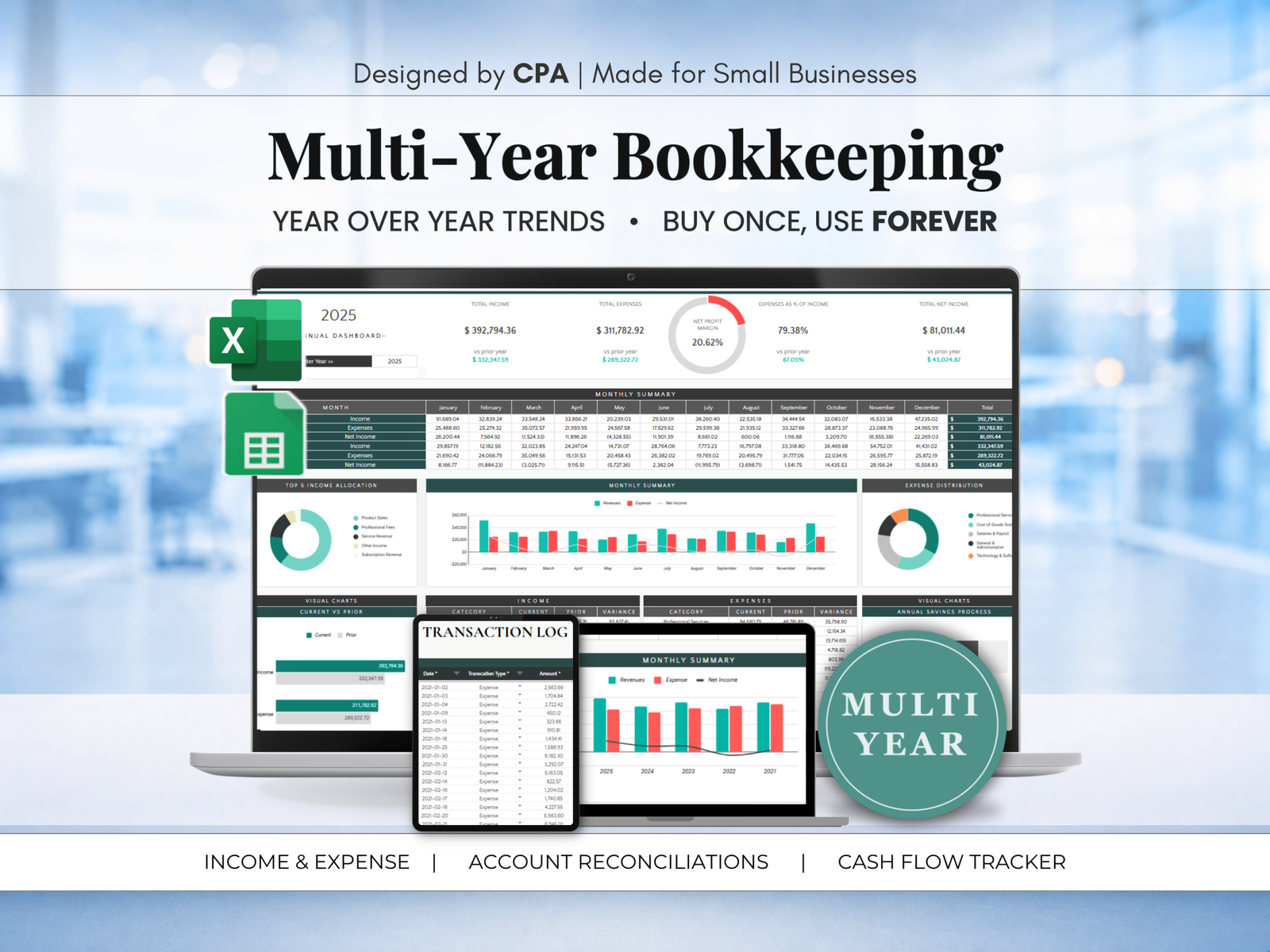
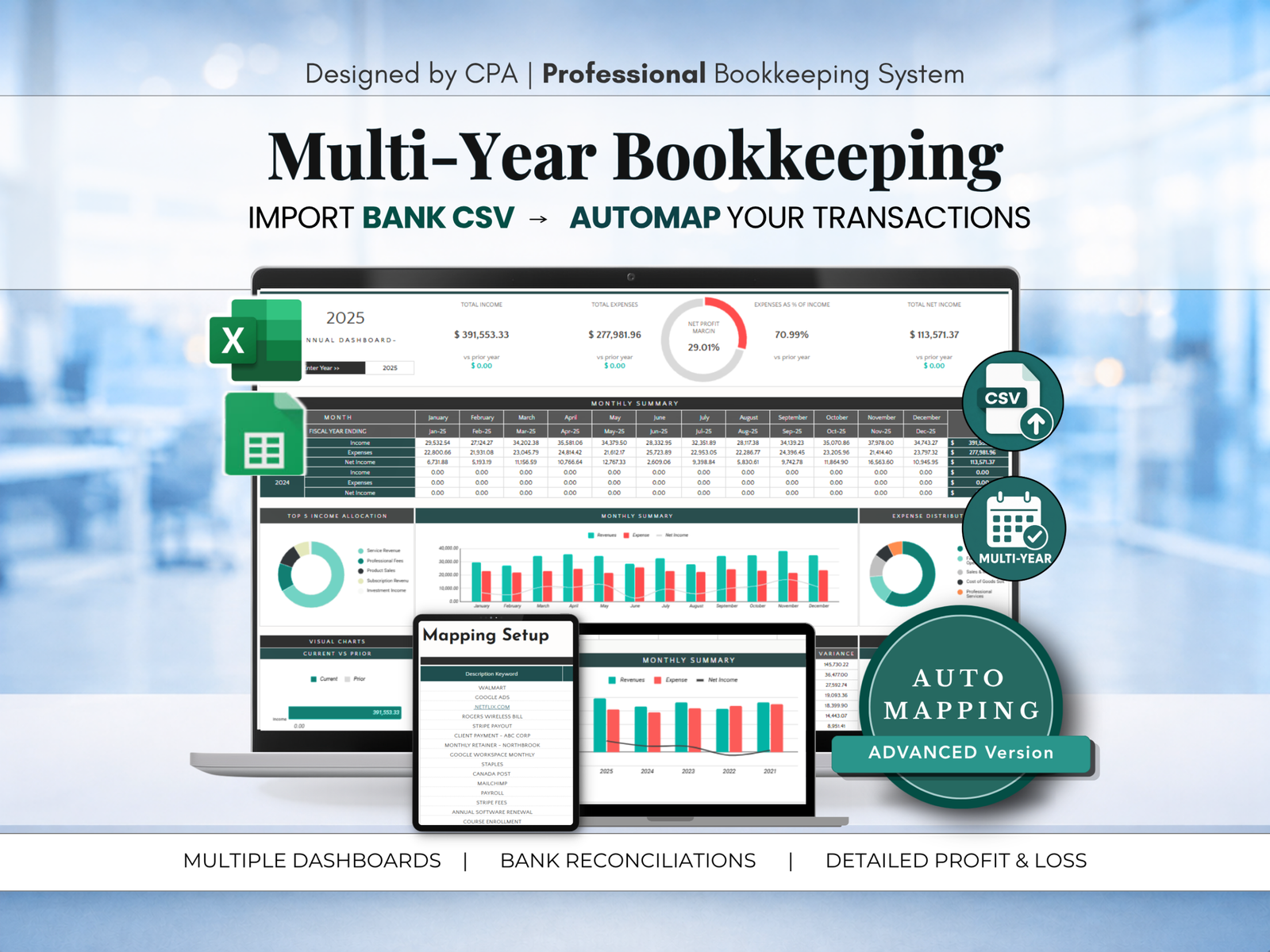
Love your free tracker? Get the full CPA system: log every transaction, reconcile to your bank and let your reports build themselves.
EXCLUSIVE OFFER
A thank you for downloading: get 15% off any bookkeeping system on our website.