
FREE TEMPLATE
Get your free
Profit & Loss Tracker
A simple monthly profit and loss tracker for Excel and Google Sheets. Try it out first, completely free.
SEND MY FREE TRACKERJoin the list and claim your free template
Instant download · One-time purchase · No subscription
A CPA's simple 5-step system for tracking business income and expenses in a spreadsheet: chart of accounts, one log, reconciliation and reports.
Let’s be honest: tracking your income and expenses is not the same as understanding your profitability. As a CPA with over 15 years of experience, I can tell you firsthand that you can track your numbers every single day, but if you don’t have a system to analyze them, then it’s not giving you any real value.
Now I know, you’ve got to file your taxes… I get it! But what if you could track your finances for tax purposes AND derive value from it. What benefit could that provide, right? Well, here’s the thing: understanding your numbers is how you grow. They tell you what’s working. They tell you what isn’t working. They show you your seasonality and trends, so you can plan for the next year instead of guessing.
Now 15 years of CPA experience means that I have spent A LOT of time looking at numbers. And the biggest misconception about accountants? We are good at math and we can add a bunch of numbers. WRONG! What I am actually good at how to interpret numbers. Hand me a set of your financial statements, and I can read between the lines: your margins, your trends, the expenses quietly creeping up. The full story of your business.
And here’s my hot take: you don’t need a fancy, expensive accounting software to do this. And for a lot of small businesses, a spreadsheet is probably the better choice, as long as it’s set up the right way.
When I started my business, I needed a way to track my income and expenses. I considered an accounting software, I mean, I have used so many different systems for multi-million dollar companies, so why wouldn’t I use it for my small business? But I quickly realized I didn’t want to pay $50-100 per month for a software where I would barely use half the features. I’m a finance girl, I will just build my own!
So I opened my Excel and started tracking all of my income and expenses. But I soon realized, I didn’t have a system to help me. The first time it bit me, I typed a deposit wrong: $2500 instead of $250. And guess what? I had to go back and manually recheck every single transaction.
Then another month, I forgot 10 transactions. TEN different expense lines, missing! My net income was inflated, and I didn’t catch it until 2 months later. It was a disaster!
And you know what else? I didn’t have a separate bank account for my business. I KNOW. I’m embarrassed to say it! When I first started out, I was a tiny business, so I didn’t think I needed one. Then I started growing and BAM, my personal and business expenses were all mixed together.
With 250 to 500 transactions a month, my books were prone to error. As an accountant, I knew I didn’t have the right checks in place. So what does any slightly obsessed CPA do? She starts building them! Checks, balances, tweaks and more tweaks, for years! Until finally, I had the PERFECT bookkeeping system for any small business (Okay, I might be a little biased!).
And now I’ve turned my system into ready-to-use templates for small business owners (500+ and counting!). So grab a coffee, because I’m going to walk you through the 5 steps I use to keep my books clean, and show you how my templates do the heavy lifting for you.
Already interested in my magical templates? I don’t blame you! Here you go:
So what is a chart of accounts? The textbook definition: a list of all the accounts a business uses to record its transactions. For me, it’s simple: it’s the set of categories I tag every transaction to, down to the lowest level of detail I actually care about.
Now here’s the thing with fancy accounting software. The chart of accounts can get pretty complex, with cost centers, departments and locations all strung together. But the GOOD thing about that complexity? You can slice and dice your numbers any way you want.
Let’s say I want to see my total professional fees: legal, consulting, IT support and contractor fees. But I ALSO want to zoom in and see just my Consulting fees.
And this is one of the biggest gaps I see in almost every bookkeeping spreadsheet out there. You get one level of categories, and that’s it. You pick “Consulting” or you pick “Professional Fees”, but you never see how the details roll up into the big picture.
So that was the very first thing I built into my template: categories that roll up. High level categories, with subcategories underneath. It looks like this:
Want the big picture? Look at Professional Fees. Want to know exactly what makes up your professional fees and what’s driving your monthly cost? Look at the subcategories that roll up into it.
Set up a chart of accounts with categories AND subcategories that roll up.
Here’s another thing I see in SO many templates: an income log on one tab, an expense log on another, and absolutely no connection to your bank statement. Everything gets typed in by hand, and then it’s on you to make sure it’s all correct.
And as you saw in my origin story, that’s exactly how typos and missing transactions sneak in. Plus, think about all the repeat work. That monthly subscription you pay every single month, same amount? You’re typing it in. Every. Single. Time. Office supplies from the same store? Typing it again.
Now, if you only have 25 transactions a month, manual entry is totally manageable. But if you’re like me, with 250 to 500 transactions a month (or more!), digging through bank statements and receipts to type it all in gets overwhelming FAST.
So here’s how I set up my transaction log to make this so much easier.
Income, expenses, transfers, cash. It ALL goes in one place. Not multiple tabs, not multiple files, not three different apps. Because guess what? Every extra place you track things is another place for something to go missing.
Almost every bank lets you download your transactions as a CSV file, and it gives you the three things that actually matter: the date, the description and the amount. Why type them in yourself?
The catch? Every bank exports differently. Sometimes the dates don’t come through as real dates in Excel or Google Sheets. Sometimes there’s a separate debit column and credit column instead of one amount. It drove me crazy! I just wanted to download my statement and paste it in, but there was ALWAYS something to fix first.
So I built a bank CSV import file. You paste in your bank export, and it automatically converts the dates into a format Excel and Google Sheets recognize, and combines your debits and credits into one amount column. Then you paste the cleaned-up data straight into the transaction log. Done!
From there, all I do is tag each transaction:
Even accounting softwares makes you pick an account for every transaction. But it also lets you automate the repeat stuff, so I wanted that too.
That’s why some of my templates include an auto mapping feature. You set a rule once. For example, every time “Google Workspace” shows up in your bank description, it goes to Software and Subscriptions. From then on, every time you paste in your bank data, those transactions categorize themselves. No more tagging the same subscription every month!
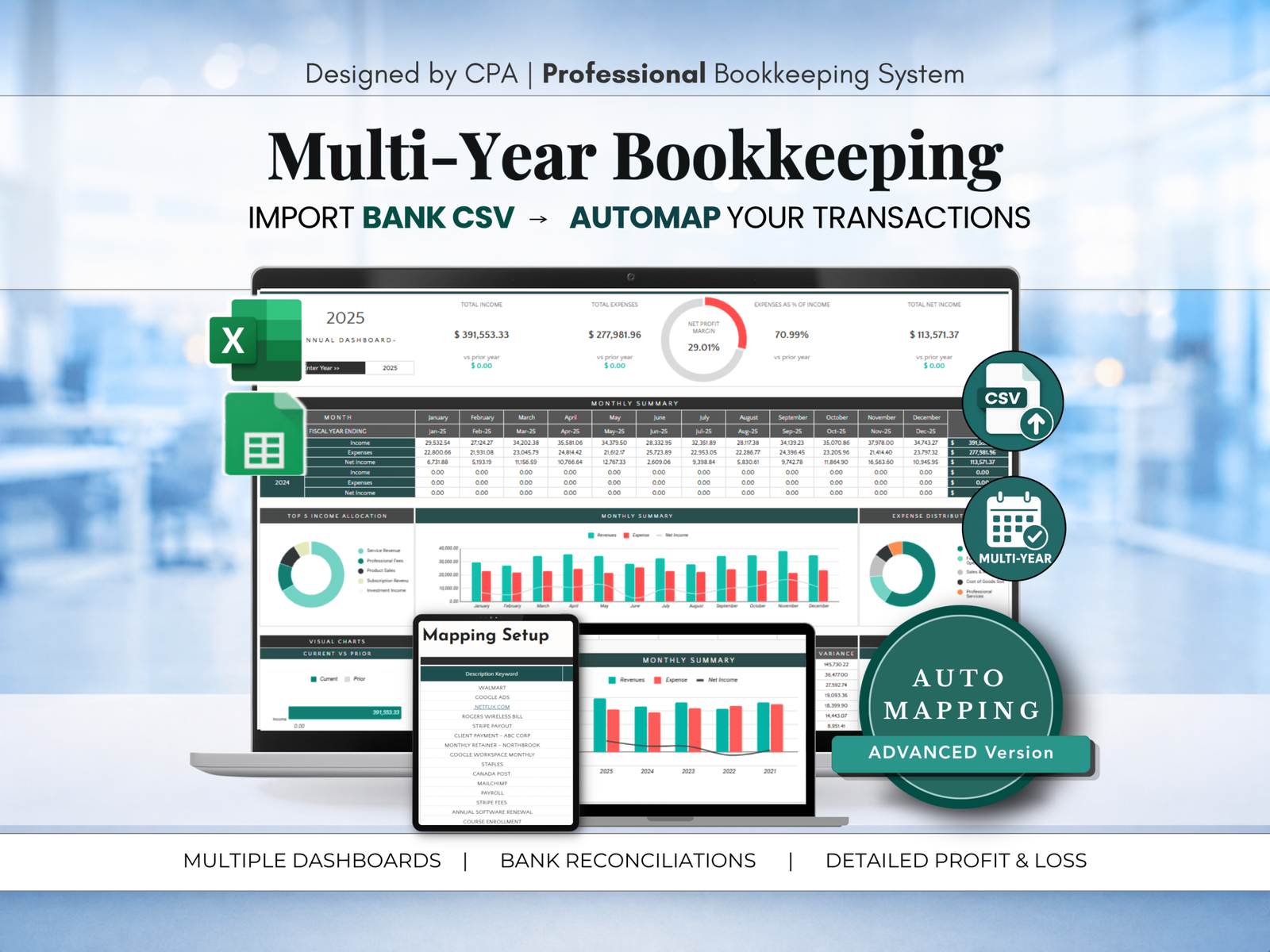 Auto mapping, built inIt comes ready to go in the Multi-Year Bookkeeping System with Auto Mapping.
SEE IT
Keep ONE transaction log for everything, and import from your bank instead of typing. Less typing means fewer mistakes, and fewer mistakes means numbers you can actually trust.
Okay, remember my $2500 deposit that was actually $250? And the TEN missing expenses? Here’s the thing: both of those would have been caught in five minutes if I had reconciled.
So what is a reconciliation? The textbook definition: comparing your records to your bank statement to make sure they match. For me, it’s simple: it’s proof that my numbers are actually right.
Every month, I take the ending balance on my bank statement and compare it to the balance in my spreadsheet. If they match, perfect! I know nothing is missing and nothing got typed wrong. If they don’t? Something is off, and I go find it NOW, not 2 months later when I’ve already made decisions on bad numbers.
And this is another big gap I see in almost every bookkeeping spreadsheet out there. They track your income and expenses, but they never check them against anything. So how do you know they’re right?
So I built a reconciliation right into my template. Every account gets reconciled: chequing, savings, credit cards and even accruals. You enter your statement balance and the template calculates your expected balance based on your transaction log, then shows you the difference. Zero difference? You’re done! Unreconciled difference? You know exactly which account and which month to look at, so you can deal with it right away.
And here’s a little CPA secret: it doesn’t always have to be perfect to the penny. In the accounting world, we can use a tolerable range. If you’re off by a few cents because of rounding, you don’t need to spend an hour hunting it down. But if you’re off by hundreds or even thousands? Yeah, I would encourage you to find that difference! That’s why my templates have a built-in tolerable range, so you can set your own value based on what’s important for your business.
Reconcile every account, every month. It’s the only way to know your numbers are actually right. Define your tolerable range and find the differences that exceed it.
I promised I’d come back to this one. Remember how I didn’t have a separate bank account when I started? Yeah. Let me tell you why that was such a mess.
When your personal and business expenses are all mixed together, every single transaction turns into a question: business or personal? Was that Walmart run for the business or for my groceries? Was that Amazon order printer ink or a birthday present? Multiply that by 250 transactions a month and you can see how fast it gets out of hand.
And it’s not just annoying. If you ever need to back up your expenses at tax time, you want a clean paper trail, not a bank statement full of groceries and Netflix.
So here’s what I did (finally!): I opened a separate bank account AND a separate credit card just for my business. Everything business goes through those. Everything personal stays out. That’s it! Your bank statement basically becomes your bookkeeping, which makes the CSV import from Rule #2 SO much cleaner.
But what about when you pay for something for the business from your personal account? I get it, it happens! In my template, that’s an Owner’s Contribution. And when you take money out of the business for yourself? That’s an Owner’s Withdrawal. They get tracked, but they don’t mess up your profit and loss. Clean books, no guessing.
Open a separate bank account and credit card for your business, and track anything that crosses over as an Owner’s Contribution or Owner’s Withdrawal.
Okay, this is my favourite part. Remember my hot take at the beginning? Tracking your numbers isn’t enough. You need to understand them. And this is where all the work from #1 to #4 finally pays off.
Because you set up categories that roll up, logged everything in one place, reconciled every month and kept business and personal separate, you now have numbers you can actually TRUST. And numbers you can trust are numbers you can use.
So what do I look at?
And a few extras I love:
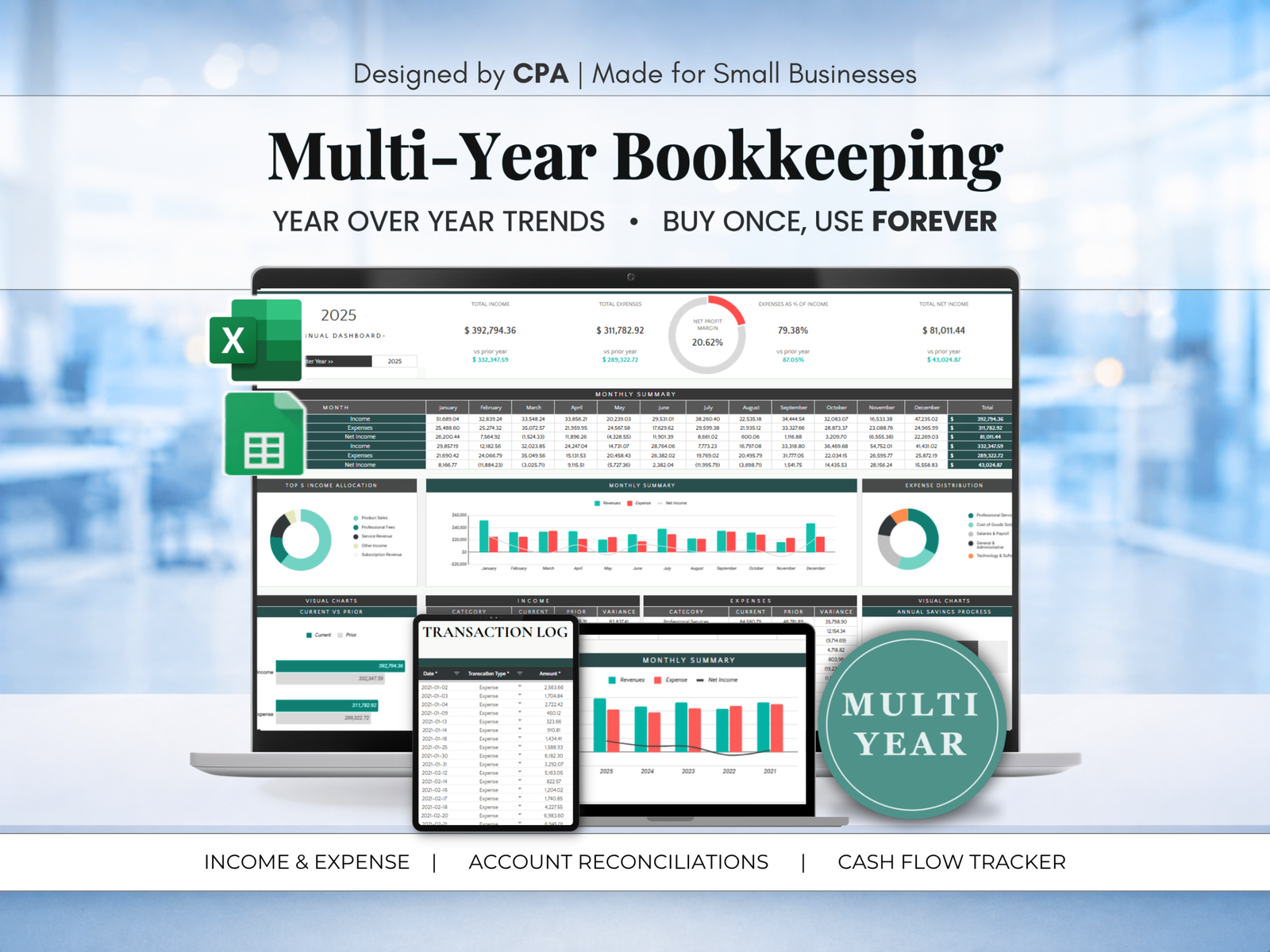 Every report above, built inProfit and loss, dashboards, transaction history, budget and sales tax are all in the Multi-Year Bookkeeping System.
SEE IT
And no, I don’t build these reports by hand every month. My template builds the profit and loss and the dashboards automatically from the transaction log. Monthly, annual and even 5 year views. I log, I reconcile, and the reports are ready for my review!
Hand that to me, and I can tell you the full story of your business. But the best part? Now YOU can read it too.
Review your profit and loss and dashboards every month. Your numbers are telling you what’s working and what isn’t, so listen!
Here’s my simple system for tracking your business income and expenses in a spreadsheet:
That’s it! No fancy software, no monthly fees. Just a spreadsheet that’s set up the right way.
I spent YEARS building, breaking and fixing this system so you don’t have to. If you want everything I just walked you through, ready to go:
Multi-Year Bookkeeping System
Chart of accounts with 15 categories and 75 subcategories, one transaction log, bank CSV import, reconciliation for up to 10 accounts, and an automatic profit and loss and dashboards. Works in Excel and Google Sheets.
$26.95SEE IT
★ MOST AUTOMATED
Multi-Year Bookkeeping System with Auto Mapping
Everything above, PLUS 1,000 built in rules that categorize your bank transactions for you. Perfect if you’re like me, with hundreds of transactions a month!
$31.95SEE IT
Honestly? For a lot of small businesses, yes! As long as it has categories that roll up, one transaction log and a monthly reconciliation. If you have employees, inventory or complicated payroll, accounting software might be worth it. But for most freelancers and small businesses, a well built spreadsheet does the job without the monthly fee.
Once a month, right after your bank statement comes out. If you have a lot of transactions, you can do it weekly so mistakes don’t pile up. Also, my template handles different statement end dates, so whether your bank statement period ends on the 31st of each month or the 17th, this template can manage it!
Either! All of my templates work in both.
Not ready for the full system? Start with my free Profit & Loss Tracker.